Do you find yourself typing the same phrases over and over again? Then Typinator is the perfect tool for you. Typinator is a text expander that expands your text as you type — automatically and across your entire system. Whether you’re replying to emails, filling out forms, or inserting code snippets, you’ll save time, avoid typos, and maintain consistency.
In this guide, you’ll learn how to set up Typinator, explore its interface, and integrate it into your daily workflow.
Why Typinator? More productivity with text expansion
Repetitive typing slows you down and increases the risk of errors. Typinator puts an end to that: you can insert abbreviations, phrases, or entire code blocks with just a few keystrokes. Instead of wasting minutes on routine tasks, you’ll finish in seconds.
That means: save time, avoid mistakes, and keep your mind free for your projects or clients.
Typical use cases:
Customer Support: Answer common questions quickly and consistently.
Business Communication: Use templates for emails, campaigns, or messages – no typos, consistent tone.
AI & Prompt Management: Save your best ChatGPT and AI prompts. (See our detailed Prompt Management Guide for more)
Programming: Insert code snippets, standard structures, or boilerplates in seconds.
Admin: Use shortcuts to insert addresses, signatures, disclaimers, or standard text.
Step 1: Installation & activation in minutes
Typinator is easy to set up:
Download: Get the trial version from ergonis.com.
License Key: If you decide to purchase, you’ll receive your license key by email.
Activation: Enter your key into Typinator – the full version with all features is instantly available.
After that, you can create your first abbreviations and start working more efficiently right away. Not ready to buy? Try the free trial version to see if Typinator fits your workflow.
The user interface at a glance
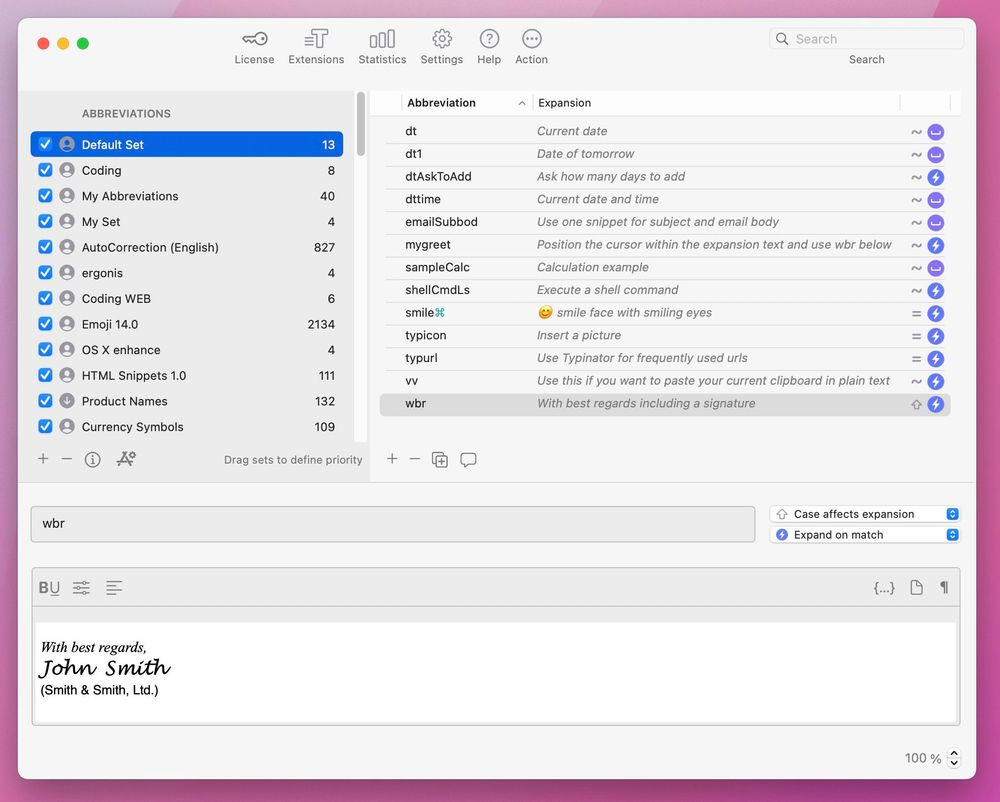
Typinator’s main window has with four clearly structured sections:
Sets (red): On the left side you can organize your abbreviations into groups such as Private, Work or AutoCorrection.
Abbreviation list (green): The center panel displays all abbreviations and the expansions (also called Snippets) within the selected set.
Details (yellow): When you select an abbreviation, its details appear on the right side. Here you can edit the abbreviation trigger and define the expansion content. The expansion can be plain or formatted text, html, or images. Text abbreviations can also include dynamic elements like the current date, time, or cursor position.
Main navigation (blue): At the top you’ll find the main navigation area, which gives you easy access to the most important tools and settings:
- License: Enter or manage your license key.
- Extensions: Add ready-made abbreviation sets to make your work even faster.
- Statistics: See how often your abbreviations are used and when they were last triggered.
- Apps: Choose which abbreviation sets are active in specific applications.
- Settings: Customize Typinator to your needs.
- Action: Check for updates, import/export abbreviations, or quickly search your sets.
- Help: Access documentation and tips.
Step 2: Get started instantly with the built‑in standard set
Before creating your own abbreviations, Typinator includes a default set of examples so you can experiment right away.
Example: Type wbr — Typinator automatically inserts “with best regards.”
These built‑in shortcuts show you exactly how text expansion works. You can edit or delete them anytime and create your own personalized set.
Tip: Use pre‑made extensions
Typinator includes many ready‑to‑use abbreviation sets:
- Auto‑Correction: Automatically fix common typos.
- Date & Time: Insert the current date in various formats or perform date calculations.
- Math & Conversions: Calculate directly within text and insert the results.
- Interactive Examples: Create dynamic entries with input fields, dropdowns, or variables.
- Emoji & Symbols: Quickly insert arrows, symbols, or emoji.
You can find these sets under Extensions or on the website.
Step 3: Create your first custom abbreviation
Setting up abbreviations is simple:
- Click the plus sign in the abbreviation list to create a new abbreviation.
Optional: You can first click the plus sign in the list of sets to create your own new set. - In the “Abbreviation” field, type a short trigger, such as
tymail. -
In the “Expansion” field, enter the full text you want Typinator to insert. For example:
“Thank you for your email. I’ll get back to you shortly.”
From now on, whenever you type tymail in any application Typinator replaces it with your full response.
Pro tip:
Typinator doesn’t just expand text; under options it also lets you control when and how abbreviations are triggered — so you can avoid unwanted expansions.
QuickSearch – Find abbreviations instantly
As your library grows, QuickSearch helps you find any snippet in seconds.
Simply open the search bar with a keyboard shortcut, type a few letters, and instantly find the abbreviation you need — without interrupting your workflow.
Advanced features
- Dynamic Placeholders: Automatically insert the current date, time, or even clipboard contents into your expansions.
- Calculations: Perform simple math directly in your abbreviations, like totals or formatted values.
- Cursor Control & Keystrokes: Move the cursor to specific positions, navigate through form fields, or trigger keystrokes after an expansion.
- Variables: Store a value (like a name, number, or date) once and reuse it multiple times in the same abbreviation.
- Custom Inputs: Prompt yourself for text entries when the abbreviation expands, so you can fill in details on the spot.
- Choices & Dropdowns: Create alternatives or dropdown menus so you can pick between preset options (e.g., different greetings, product names, or templates).
- Script Support: Use AppleScript or JavaScript to build advanced, automated workflows.
Typinator iOS app
Typinator also comes with an iOS companion app for accessing your snippet libraries on iPhone and iPad, so your frequently used texts are always available—even when you’re away from your Mac.
Practical tips to get started
- Start with a few core abbreviations (e.g., signature, standard reply).
- Organize abbreviations into sets.
- Use QuickSearch for large libraries.
- Experiment with dynamic placeholders.
- Include formatting or images if needed.
- Keep your abbreviations updated.
- Share sets with your team.
Go further: Manual & learning center
Once you’ve mastered the basics, there’s much more to discover:
User Manual: Access it directly from Typinator under Help > User Manual.
Learning Center: Tutorials, examples, and ready‑to‑use sets.
Turn Typinator into your personal productivity system.
Conclusion: System‑wide text automation on Mac
Typinator works system‑wide and integrates with all applications — Mail, browsers, text editors, or development environments.
Once set up, it supports you everywhere you type.
Frequently asked questions (FAQ) for new users
What exactly is Typinator?
Typinator is a **text expander** for macOS. It lets you store frequently used text, images, or code snippets under short abbreviations — inserting them instantly into any app.
Can I use Typinator for AI prompts?
Yes, absolutely! Typinator is an excellent **prompt management tool**. You can store your most‑used ChatGPT commands as snippets. See our [Prompt Management Guide](#) for detailed instructions.
How much time can I save with Typinator?
Even with just a few basic snippets (like email addresses, signatures, or standard replies), users typically save several hours each month. The more snippets you create, the greater the time savings.
Does Typinator work in all applications?
Yes. Typinator functions system‑wide on Mac — whether you’re in Mail, Word, Pages, Slack, a web browser, or developer tools, your abbreviations are always available.
User Testimonials
Typinator is an essential efficiency tool for our processes, enabling our Compliance team to use audit‑approved, regulatory‑compliant notes. The intuitive product, combined with a super‑friendly and supportive team, makes Typinator a perfect fit for us!
— Max Kaiser, Senior Project Manager at Visa
I cannot live without Typinator — in fact, scary enough, sometimes I find myself writing the shortcuts on paper instead of what I really mean!
— Noel, Boston, MA, USA
I translate computer books (mostly the “for Dummies” series), which use a lot of specific terminology. Many terms are difficult to type and remember. If I had to type them manually, it would take me ages and my manuscript would still be full of typos. Since delegating that task to Typinator, the program has literally saved me days, if not weeks, of work.
— Claus‑Jürgen Kocka, Nuremberg, Germany
Related to